

Divi is a WordPress theme, so the quickest way to put tufu on a Divi site is the free tufu AI plugin: no code to paste, and nothing to redo when Divi updates. This page covers the plugin, what's particular to Divi (the Visual Builder, the Ask console in a layout, Divi's performance settings), and the snippets in Theme Options if you'd rather not add a plugin. It works the same on Divi 5 and Divi 4.
Before you start#
- You need to be an administrator of the WordPress site, and an admin of your team in tufu. No tufu account yet? You can create a free one while you connect.
- The plugin needs WordPress 6.5 or newer, and PHP 7.4 or newer.
1. Install the plugin#
In WordPress, go to Plugins → Add New Plugin and search for tufu AI. Press Install Now, then Activate.
2. Connect to tufu#
Go to Settings → tufu AI and press Connect to tufu. Sign in, or create a free account, pick the bot your site should show, and press Connect. You're back in WordPress with the bot saved.
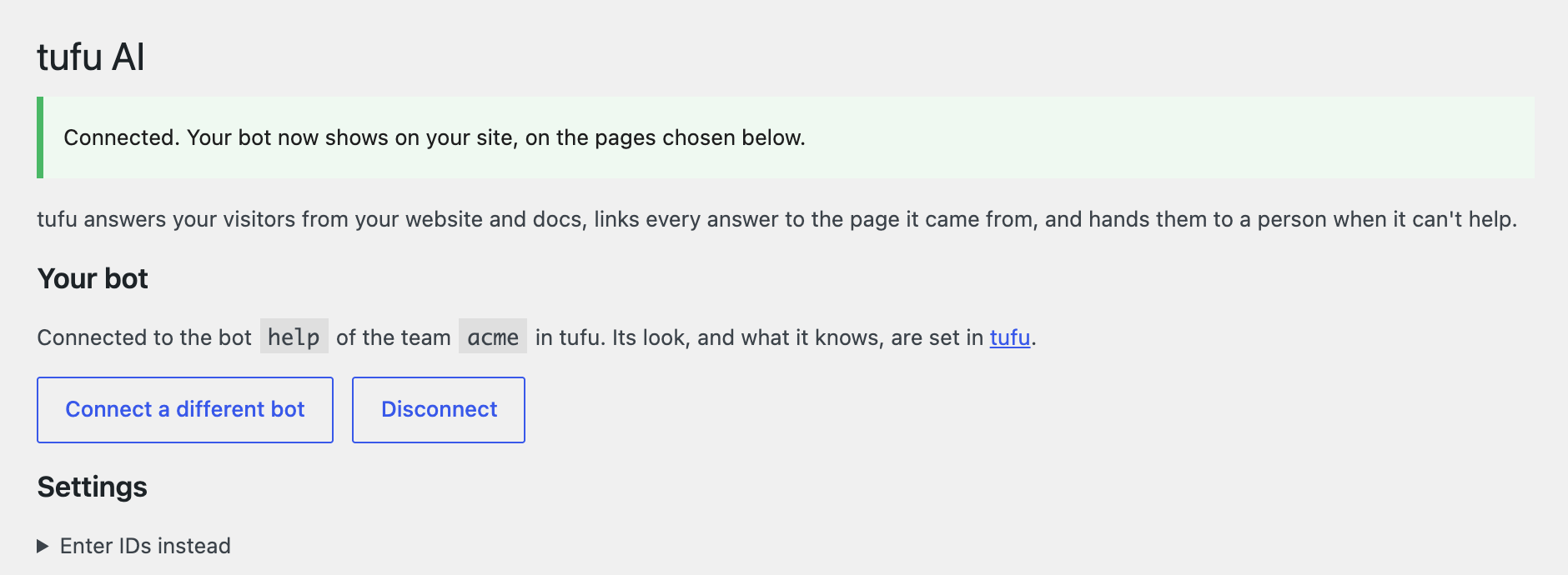
The details of each step (making a private bot public, a bot's allowed websites, typing the IDs instead) are in Install on WordPress.
3. Check it on your site#
Open a page of your site the way a visitor would, not in the Visual Builder: the chat button is in the corner. Check it's live on tufu in Settings → tufu AI opens the bot's Put it on your site page, which turns to "Live on" your site the first time the chat loads there.
The chat and the Visual Builder#
Divi's Visual Builder edits your page on the front end of the site, so to WordPress it looks like a visitor's page. From plugin version 0.6.2 the chat bubble stays out of it, so it never covers your module settings or the builder's buttons. Exit the builder (or open the page in another tab) and the bubble is there.
The same goes for the editors of Elementor, Beaver Builder, Bricks and Oxygen, if you use one of them alongside or instead of Divi.
On an older version of the plugin, update it under Dashboard → Updates, or turn on Hide the chat bubble from logged-in admins in Settings → tufu AI while you design.
The Ask console in a Divi layout#
The Ask console is a search box that answers from your knowledge, handy on an FAQ, help or pricing page. The Visual Builder doesn't use WordPress blocks, so add it with the shortcode:
Open the page in the Visual Builder, add a Code module where the box belongs, and in its Content tab, under Code, type:
[tufu_ask]Save the page and exit the builder to try it.
The shortcode takes the same options as anywhere in WordPress: [tufu_ask placeholder="Search our services"] changes
the text in the box, and hotkey="" turns off the Cmd or Ctrl + K shortcut. To show it on every page, put the Code
module in a header or footer template under Divi → Theme Builder.
Divi's performance settings#
Divi can defer scripts and load its own JavaScript only where it's needed (Divi → Theme Options → General → Performance). Leave those as they are: tufu's script already runs after the page, as a module.
What can stop the chat is an optimization plugin that combines or delays JavaScript (WP Rocket, LiteSpeed
Cache, Autoptimize and the like): exclude tufu-chat.esm.js in its JavaScript settings. After any change, clear that
plugin's cache and your host's page cache. More in Install on WordPress → Troubleshooting.
Without the plugin: Theme Options#
If you'd rather not add a plugin, Divi's Integration tab puts code on every page of the site. Copy the two lines
from your bot's Put it on your site page in tufu (they have your team and bot IDs filled in; below they're
your-team and your-bot).
Go to Divi → Theme Options and open the Integration tab. Turn on Enable header code and paste the script
in the box for the <head>:
<script type='module' src='https://tufu.ai/widget/v1/tufu-chat.esm.js'></script>Turn on Enable body code and paste the chat element in the box for the <body>:
<tufu-chat team="your-team" bot="your-bot"></tufu-chat>Press Save Changes, then open your site.
Snippets pasted this way show in the Visual Builder too, and they don't sign in logged-in visitors or answer WooCommerce order questions: those need the plugin. Use one route or the other, not both, or the chat loads twice.
Teach the bot your site#
Under Knowledge, add a Website source with your sitemap. WordPress publishes one at
https://yourdomain.com/wp-sitemap.xml; an SEO plugin (Yoast, Rank Math and the like) usually replaces it with its
own, often sitemap_index.xml. Either works. See Knowledge.
Troubleshooting#
- The bubble doesn't show on the live page. Check you're not in the Visual Builder, then the list in Install on WordPress → Troubleshooting: the Show the chat bubble setting, the bot's Where it appears page, caching, Cloudflare Rocket Loader.
- The chat shows twice. The snippets are in Theme Options and the plugin is connected. Remove one: turn off Enable header code and Enable body code, or disconnect the plugin.
- The Ask box shows the text
[tufu_ask]. The plugin isn't active or connected, or the shortcode is in a module that doesn't run shortcodes. Use a Code or Text module.