

The tufu AI plugin adds the support chat bubble to your WordPress site and gives you an Ask console block and shortcode for your docs pages. You don't edit your theme or paste any code, and no API key is involved.
Before you start#
- Your site needs WordPress 6.5 or newer, and PHP 7.4 or newer.
- You need to be an administrator of your WordPress site, and an admin of your team in tufu. No tufu account yet? You can create a free one while you connect.
1. Install the plugin#
Download the plugin from tufu.ai. In WordPress, go to Plugins → Add New Plugin → Upload Plugin, choose the zip file, then press Install Now and Activate.
The plugin isn't in the WordPress plugin directory yet; it's on its way there. Until it's listed, download it from tufu.ai. Its page shows the current version and the zip's SHA-256 if you want to check your download.
2. Connect to tufu#
Go to Settings → tufu AI and press Connect to tufu.
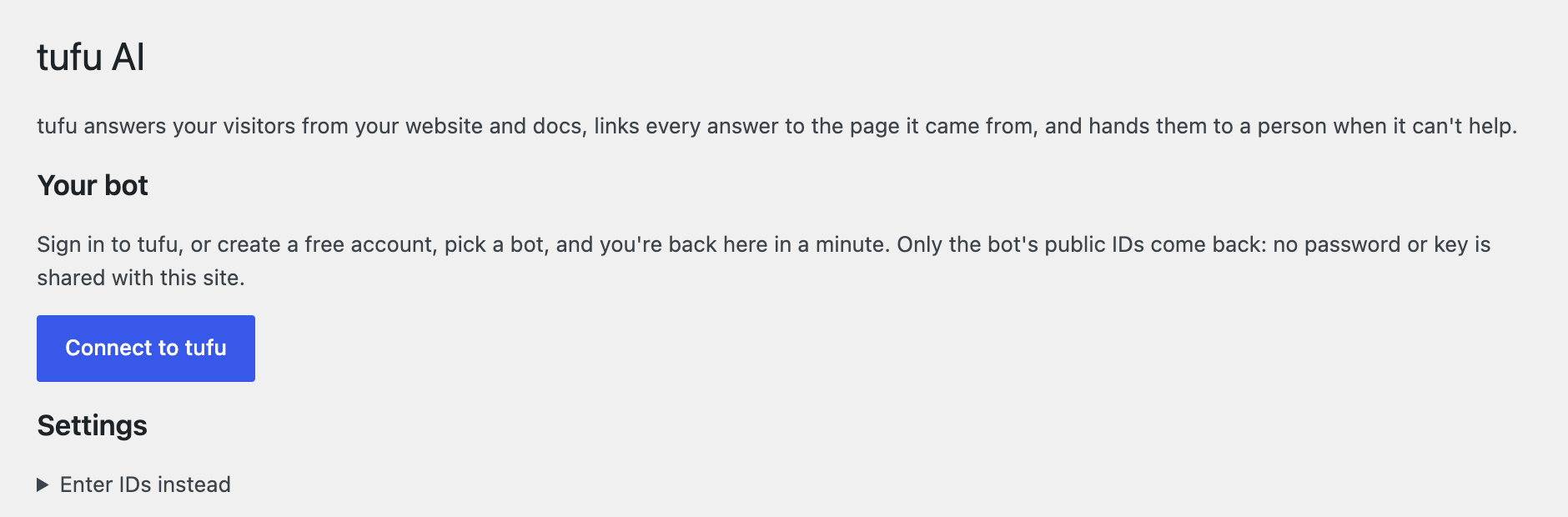
Your browser goes to tufu, which names your site at the top: check it's yours. Sign in, or create a free account, then pick the bot your site should show. You only see the teams you're an admin of. If the plan has room, you can also choose A new bot: tufu makes a public support chat named after your site, and you teach it your site afterwards under Knowledge.
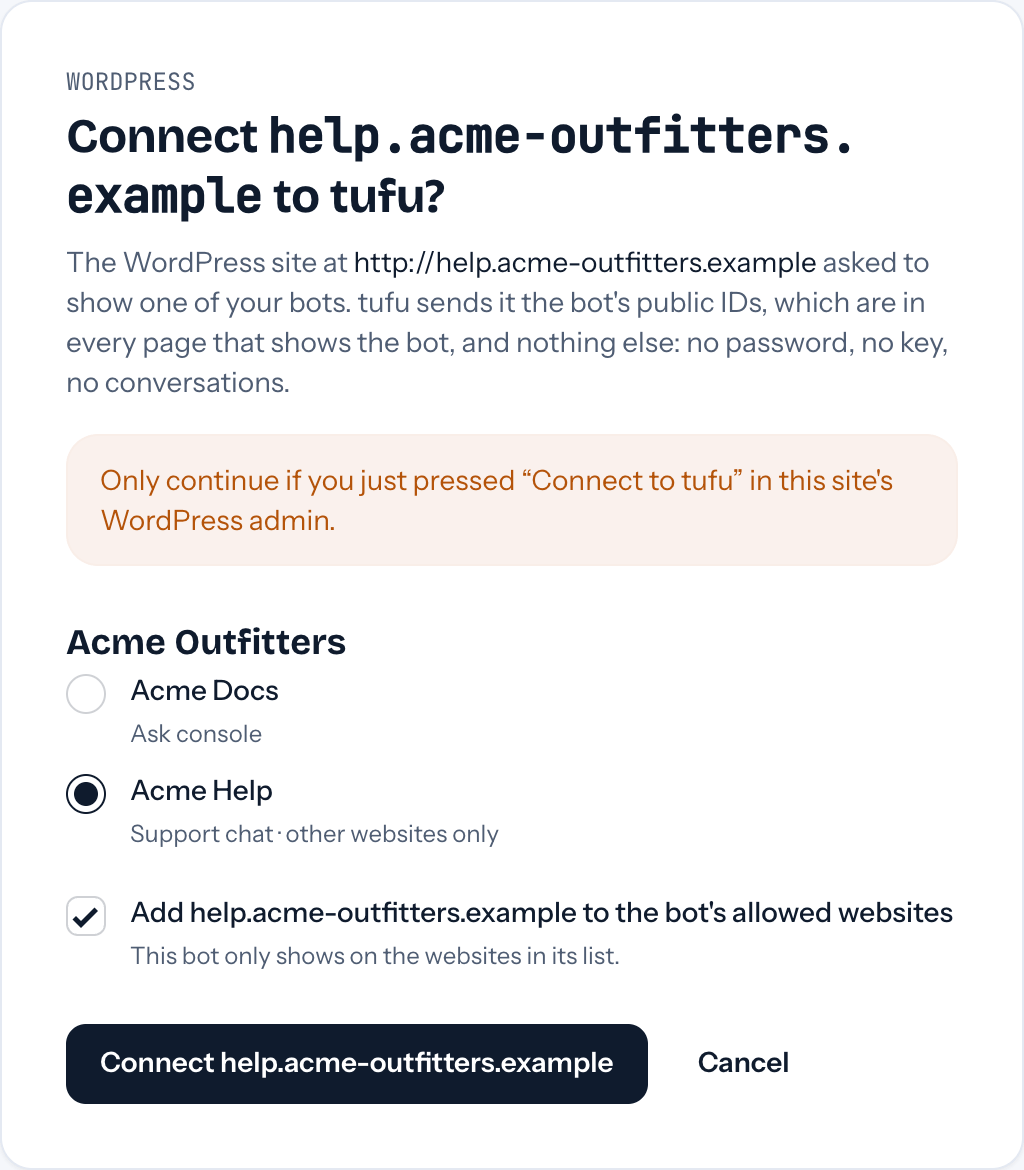
tufu picks a public bot to start with (your team's default bot when it's public). Depending on the bot you pick, tufu may need to change two things, each with a box:
- Make the bot public. Only for a private bot, and unticked until you tick it: the chat on your site needs a public bot, and a public bot can be reached by anyone, on your site and at its public link.
- Add your site to the bot's allowed websites. Only when the bot already has a list on its Where it appears page and your site isn't on it. A bot with no list shows on any site, and tufu leaves it that way.
Press Connect followed by your site's name (for example Connect example.com), and you're back in WordPress with the bot saved.
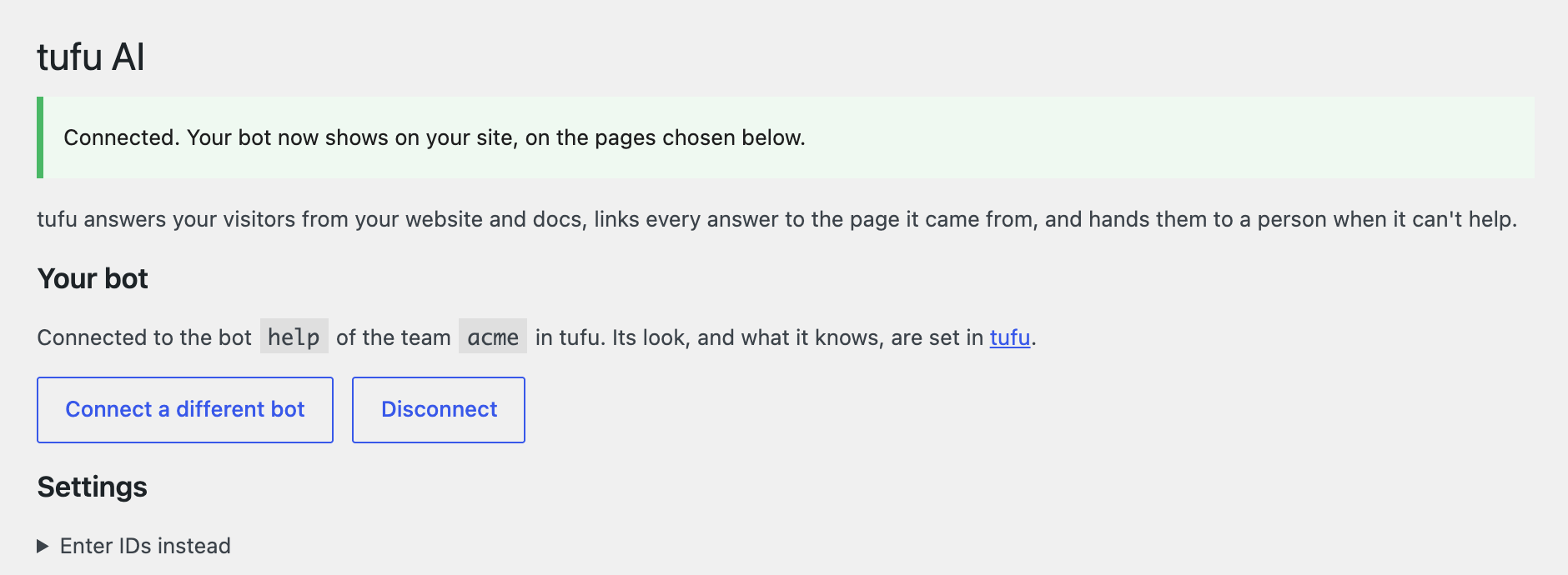
Only the bot's public team and bot IDs come back to your site, the same ones in any page that shows the bot. No password or key reaches WordPress, and the plugin stores nothing secret. Each connect request works once and expires after 30 minutes; if it does, press Connect to tufu again.
Connect a different bot runs the same steps again. Disconnect removes the bot from your site; nothing from tufu loads on it until you connect again.
Enter IDs instead#
Prefer to type them? Under Settings, open Enter IDs instead and fill in Team ID and Bot ID, then press
Save Changes. The bot's Preview page in tufu shows both in the snippet: team="your-team" and
bot="your-bot". The bot must be public.
Nothing from tufu loads on your site until a team and bot are saved: not the bubble, and not the Ask console block or shortcode.
Where the bubble appears#
Once connected, the chat bubble shows on every page of your site. It never shows in the WordPress dashboard or on the login page. In Settings → tufu AI you can change:
- Support chat: untick Show the chat bubble on my site if you only want the Ask console.
- Pages: every page, only the pages you list, or every page except the ones you list. One path per line, like
/pricingor/help/*;*matches anything, and/pricingalso covers/pricing/. - Position and Button text: leave them on As set in tufu to use the look from the bot's Appearance page, so changes there reach your site without touching WordPress.
- Admins: hide the bubble from logged-in admins while you work on the site.
The page rules on the bot's Where it appears page in tufu still apply: the bubble shows only on pages both allow. See Where your bot appears.
The Ask console on a page#
For a search box that answers from your docs, edit a page and add the tufu Ask block. In the block's settings you can change the placeholder text, or set another Bot ID to use an Ask console bot instead of the one in Settings.
If your page builder doesn't use blocks, use the shortcode:
[tufu_ask]
[tufu_ask placeholder="Search the help"]
[tufu_ask bot="your-docs-bot" hotkey=""]
placeholder is the text in the box, hotkey is the letter that opens it with Cmd or Ctrl (hotkey="" turns the
shortcut off), and bot uses another bot of the same team. A second bot needs the Team plan. The
team is always the one in Settings → tufu AI, so a page can't show another team's bot.
Branding#
On the Free plan, the chat and the Ask console show a small "Powered by tufu" link. On the Team plan you can hide it on the bot's Appearance page. The plugin itself works the same on every plan.
Updating, and the plugin called "tufu"#
Install a new version the same way: upload its zip, and WordPress offers to replace the current one. We've asked the WordPress plugin directory for the folder name the plugin uses now (tufu-ai); if the directory keeps it, WordPress will update the plugin from there once it's listed.
The first version was called "tufu" (0.1.0). Install tufu AI and activate it: it takes over the old plugin's settings and switches it off. Then delete the old one.
Removing it#
Deleting the plugin in Plugins removes its settings from your site (from every site, on a multisite network). Your bot and its conversations stay in tufu.
Troubleshooting#
- The bubble doesn't show. Check Show the chat bubble is ticked and the page isn't ruled out here or on the bot's Where it appears page. If you changed the bot in tufu since connecting, check it's still public and its allowed websites include your site. If you're logged in as an admin, check Admins isn't hiding it from you.
- "That connection expired or was already used." Press Connect to tufu again. A connect request works once, for 30 minutes.
- tufu says only a team's admins can connect a site. Ask an admin of your team to connect it, or to make you an admin.
- I changed a setting and nothing happened. Clear your caching plugin's cache (WP Rocket, W3 Total Cache, LiteSpeed Cache and the like) and your host's page cache. Changes made in tufu itself reach your site within five minutes.
- Cloudflare Rocket Loader. The plugin asks Rocket Loader to skip tufu's script. If the bubble still doesn't
show, turn Rocket Loader off for your site in Cloudflare (Speed → Optimization), or exclude
tufu-chat.esm.jsin your optimization plugin's JavaScript settings. - "Combine" or "defer" JavaScript settings. Optimization plugins that bundle scripts can break tufu's. Exclude
tufu-chat.esm.jsfrom them.