

Your bot answers the questions your docs cover. When a visitor needs a person, it hands the conversation to your team, and you answer from the web inbox, your email or Slack.
The rule of thumb: you can see every conversation, but you only get pinged when someone needs you.
How a handoff starts#
- The visitor asks. The support chat has a Talk to a human button (you can rename it in the bot's settings).
- The bot hands off by itself when a visitor asks for a person in their own words, or when it can't help from your docs (account problems, billing disputes, bugs).
If the bot asks for the visitor's email before handing off (on by default), the visitor is asked where to reach them first, so your reply can still find them if they leave the page. While they wait, the bot is paused and the visitor sees your waiting message.
Handoff works in the support chat, and in Discord with
/human. In the Ask console, the "Still stuck?" chat bot link takes visitors to a support chat instead.
When you get pinged#
You're notified for three things only:
- A visitor asks for a human.
- A request is still waiting after your reminder time (10 minutes unless you change it). Reminders go to the whole team, so nothing waits on one person who's away.
- A visitor replies in a conversation you took. This arrives in that conversation's email or Slack thread.
You're never pinged because the bot answered, a chat started, or a visitor left.
Each notification includes the conversation so far, a one-line summary and, when your docs cover it, a suggested reply written from your docs.
The inbox#
Open Inbox. The tabs are:
- Needs you: waiting for a person. This is the count next to Inbox in the menu.
- Live: every conversation active in the last 30 minutes. Watch the bot work, and step in any time with Take over, without anyone being pinged.
- Resolved and All.
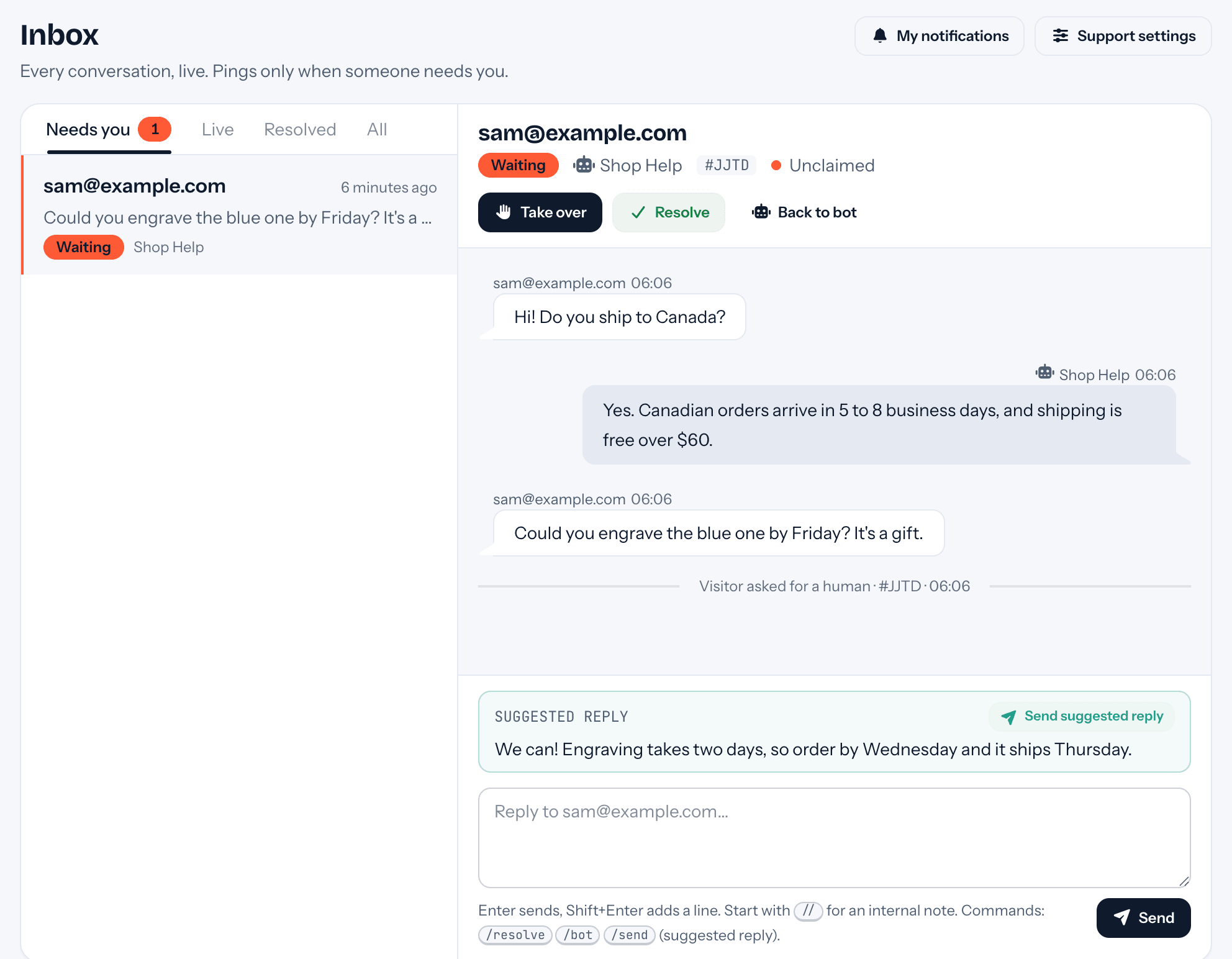
Type your reply and it appears in the visitor's chat right away, with your first name (never your email address). You can also reply by email or from Slack.
When you're done, Resolve the conversation: the bot answers the visitor's next message. Back to bot hands the conversation back to the bot straight away.
Commands#
These work in the inbox, by email, and in Slack:
| Type | What happens |
|---|---|
/send |
Sends the suggested reply. |
/resolve (or /done) |
Closes the conversation. The visitor's next message goes back to the bot. |
/bot |
Hands the conversation back to the bot right away. |
// your note |
An internal note for your team. The visitor never sees it. |
If the visitor has left#
If you reply and the visitor isn't on the page anymore, tufu emails them your reply (if they gave their email), from "Your name at Your team". If they reply to that email, it lands back in the conversation.
Your notifications#
Each person sets their own under Inbox → My notifications:
- email on or off, and an optional different address to send to;
- which of the three events you want;
- quiet hours, in your own time zone (set it in your profile; a Team plan feature). Pings during quiet hours are held back. Your team's Slack channel still gets the card.
If emails to your address bounce or are marked as spam, tufu stops emailing it and shows a warning at the top of My notifications. Fix the mailbox or use another address there, then press Try again.
Who on the team gets new requests, reminders and business hours are team settings: see Team members and routing.
Good habits for a small team#
- Turn on Take turns if more than one person answers, so each request has a clear owner.
- Use
//notes to tell teammates what you've already checked. - Resolve conversations when you're done. The bot handles the visitor's next question.