

By the end of this page you'll have a support chat on your site that answers from your docs and gets you when a visitor needs a person.
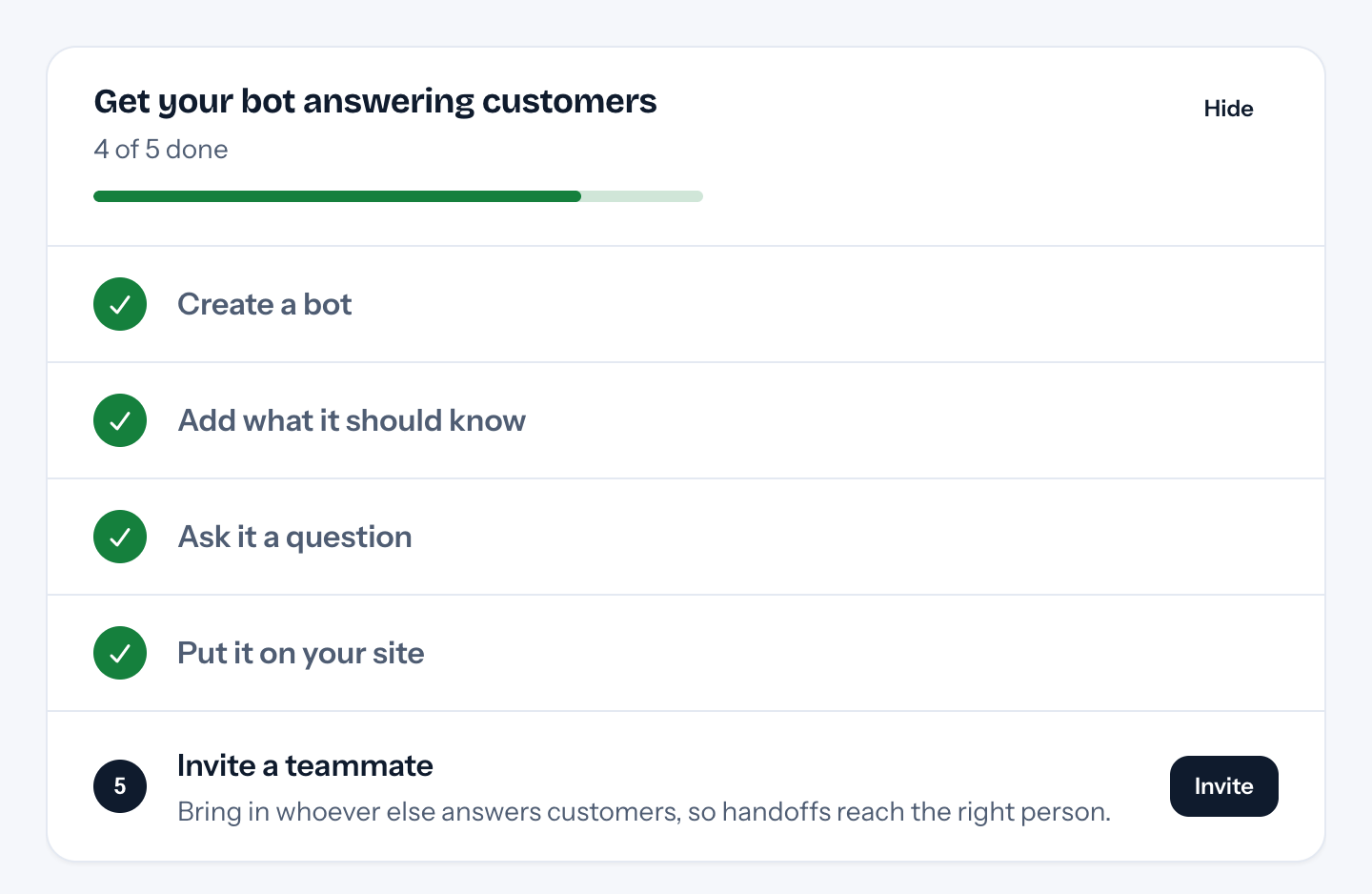
Once you've made your first bot, the Bots page shows a setup checklist with the main steps on this page, plus inviting a teammate. Each one ticks itself off when tufu sees it done ("put it on your site", for example, when the first visitor asks something) and links straight to where you do it. Admins can hide it, and it goes away for good once everything's done.
1. Sign up and create your team#
Sign up and confirm your email address (we send a link; you can sign in once you've clicked it). Then create a team. Everything in tufu (bots, knowledge, conversations) belongs to a team, and everyone you invite can answer conversations. You can invite teammates later from Members and settings. See Team members and routing.
2. Create your first bot#
tufu asks for a bot first. Give it the name visitors will see in the chat, like "Acme Help". You can change every other setting later. See Setting up a bot.
3. Add what the bot should know#
Next, go to Knowledge and add at least one source:
- Website: your help center or docs site. Paste the page addresses, or a sitemap to read a whole site.
- Files: PDFs, Word documents, PowerPoint slides or plain text you upload.
- GitHub repo, Zip file from a link, Slack and Confluence are there too.
Reading a small site takes a minute or two. While your team has a single bot, new knowledge is added to it automatically. More in Adding knowledge.
4. Try it before your visitors do#
Open Bots, then Preview next to your bot. It shows the bot as visitors will see it, as a support chat or an Ask console, on desktop or phone. Preview is a sandbox:
- conversations you have there never show up in your inbox or reports;
- a handoff you request there doesn't ping anyone;
- the bot's replies there still count toward your plan's answers.
Ask it the questions your customers ask. If an answer is off, the fix is usually in your docs, not the bot.
5. Make it public and put it on your site#
Bots start private, so only your team can use them. In the bot's settings, turn on Public. Then paste the
script once in your site's <head>:
<script type='module' src='https://tufu.ai/widget/v1/tufu-chat.esm.js'></script>and add the support chat anywhere in <body>:
<tufu-chat team="your-team" bot="your-bot"></tufu-chat>The Preview page shows the same snippets with your team and bot filled in. The details are in Installing on your website.
6. Lock it to your website#
In the bot's settings, under Where it appears, list the websites allowed to show it, like yoursite.com and
*.yoursite.com. Then nobody can copy your snippet onto their own site and use up your answers. You can also choose
which pages it shows on. See Where your bot appears.
7. Decide who gets pinged#
- Inbox → My notifications: your own email notifications and quiet hours.
- Inbox → Support settings (admins): who on the team gets new requests, the Slack channel for handoff cards, reminders and business hours (routing, reminders, business hours and Slack are on the Team plan).
8. Optional: answer support email too#
If your customers also email you, forward your support address (like support@yoursite.com) to your bot's tufu
address. The bot answers what your docs cover and hands the rest to your inbox. See
Support by email.
Then: fill the gaps#
After a few days of real questions, open Knowledge gaps. It lists what your bot couldn't answer well, grouped and ranked by how many people asked. Answer each one once and the bot knows it from then on. See Knowledge gaps.
That's it. Conversations show up live in your Inbox, and you only get pinged when someone needs you. See Human handoff and the inbox.