

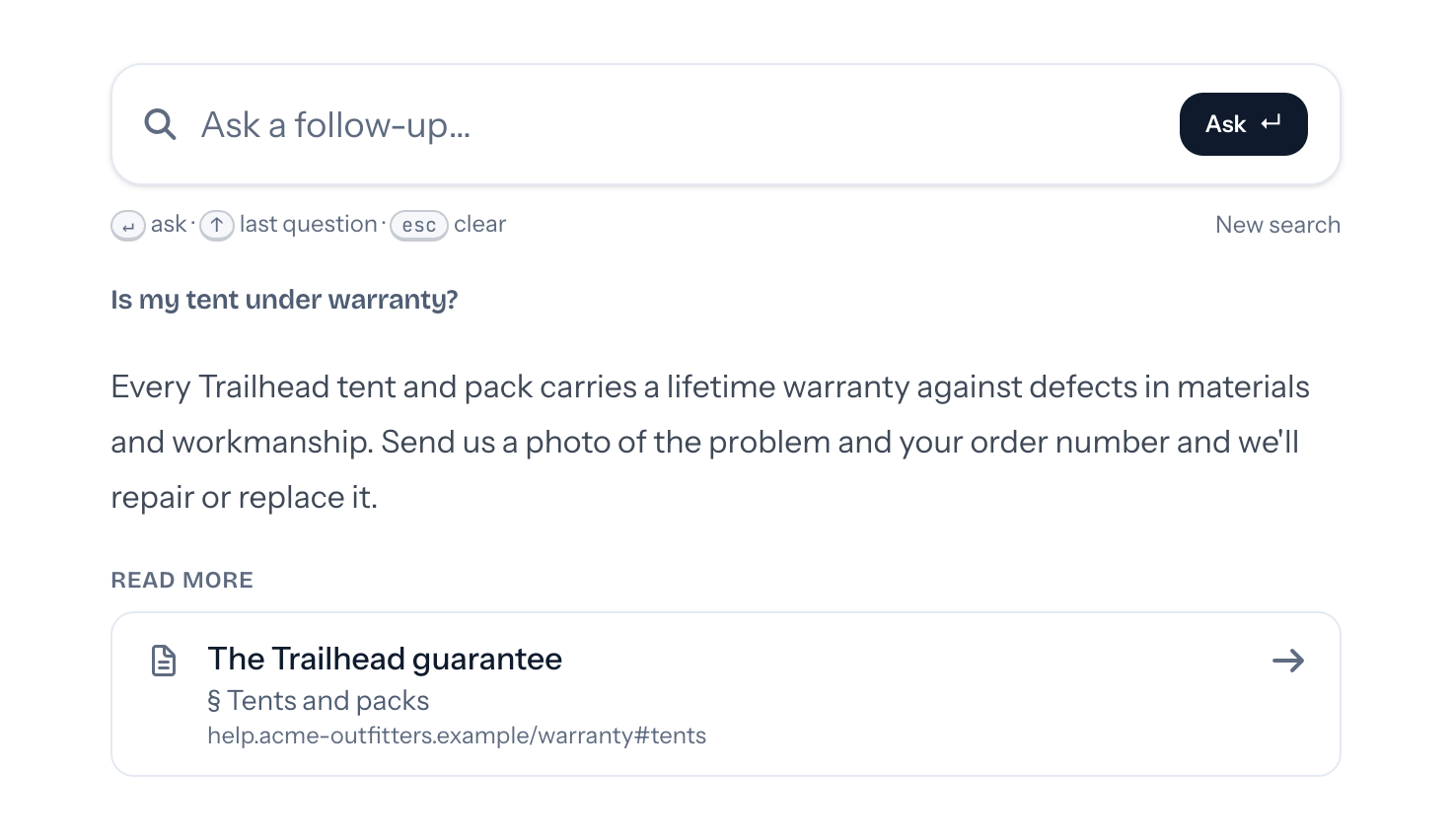
The Ask console is a search box for your docs site, the <tufu-ask> element. Visitors type a question and get a
short answer, a few sentences, plus Read more links to the exact pages (and sections, when your docs have
them) the answer came from. It's for finding the right page fast; for conversations there's the
support chat.
Setting up the bot#
- Add your docs as knowledge, for example your docs site as a Website source.
- Make the bot public.
- Recommended: set the bot's Mode to Ask console. That's where you set its Suggested questions and the "Still stuck?" chat bot, a support chat the console links to when your docs don't help. Any bot can be shown as a console, though.
Installing it is covered in Installing on your website:
<tufu-ask team="your-team" bot="your-bot"></tufu-ask>Using it#
Clicking the box, or pressing ⌘K (Mac) or Ctrl+K anywhere on the page, opens the console in a dialog. Esc, the close button or a click outside closes it. The console keeps its session while the page is open.
Inside the console, Enter asks, ↑ brings back the previous question, and Esc clears the box (or closes the dialog when the box is already empty).
Options#
| Attribute | Default | What it does |
|---|---|---|
team |
(required) | Your team ID. |
bot |
(required) | The bot's handle. |
placeholder |
the text set in tufu | The text shown in the search box. |
hotkey |
k |
The letter used with ⌘ or Ctrl to open the console. hotkey="" turns the shortcut off. |
open |
not set | Add it to open the console when the page loads. |
From JavaScript: document.querySelector('tufu-ask').show() and .hide().
The appearance studio#
The bot's Appearance page (Bots → your bot → Appearance) styles the console too, with a live preview: switch the preview to Ask console. Your brand color becomes the console's accent, and the corners and font apply to the search box and the dialog. You can also set the search box text, show your logo above the search box, and on the Team plan hide "Powered by tufu". An attribute on the element still wins over the studio.
Styling#
The search box lives in a shadow root, so you style it with CSS variables:
<style>
  tufu-ask {
    --tufu-ask-width: 20rem;
    --tufu-ask-background: #ffffff;
    --tufu-ask-text-color: #5f6b80;
    --tufu-ask-border-color: #dde3ee;
    --tufu-ask-border-color-hover: #1f9d8b;
    --tufu-ask-radius: 0.625rem;
    --tufu-ask-backdrop: rgba(15, 27, 45, 0.55);
    --tufu-z-index: 100; /* the open dialog; the default sits above the chat bubble (50) */
  }
</style>
The values above are the light-mode defaults; visitors in dark mode get dark defaults unless you set your own. The console follows the visitor's light or dark preference, unless the studio's Theme keeps it light or dark. Its accent is tufu's ink, or your brand color from the studio.
Linking straight to the console#
The console is also a plain page you can link to, or put in your own iframe:
https://tufu.ai/a/your-team/bots/b/your-bot/ask/
https://tufu.ai/a/your-team/bots/b/your-bot/ask/?q=How%20do%20I%20get%20started%3F
The second link asks the question right away.
How answers work#
- The bot searches your knowledge, answers in about three sentences at most, and cites the passages it used. Links are built only from those passages, never written by the AI, so they always point at real pages in your knowledge.
- If your docs don't cover a question, the console says so and lists the pages that came closest, plus your "Still stuck?" link when you've set one.
- Repeated questions are answered instantly from a cache, for a few hours and only until your bot or its knowledge changes. Cached answers never count toward your plan's answers; every other answer does, follow-ups included. Every question still shows up in your reports.