

Most customers still write to support@yourcompany.com. Forward that address to one of your bots and every email becomes a conversation in tufu, just like a chat: the bot answers what your knowledge covers, and anything else goes to your team, who reply by email as usual.
Set it up#
- Open Bots, pick the bot, and on its Preview page choose Set up support by email.
- Copy the bot's address. It looks like
yourteam-k3j9x2qfab@mail.tufu.ai. Keep it private: anyone who has it can start a conversation with your bot. - In your mail provider, forward a copy of incoming mail for your support address to it. The setup page has steps for Gmail, Google Workspace and Outlook / Microsoft 365.
- Back on the setup page, fill in Your support address and press Send a test email. tufu emails your support address; when the forward brings it back, the page says Forwarding works. No conversation is created for the test.
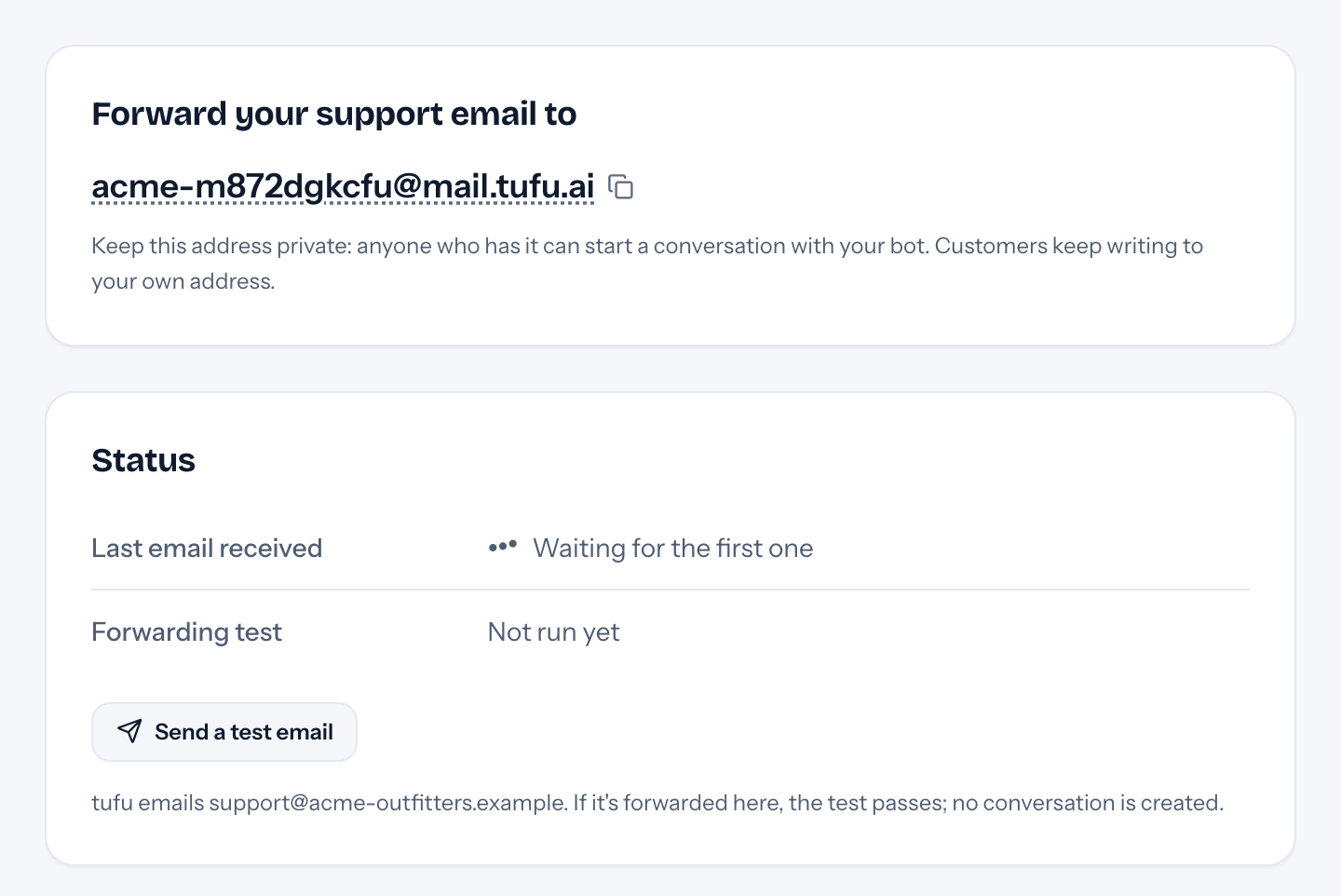
Gmail asks you to confirm a new forwarding address by emailing it a code and a link. Nobody reads the bot's address, so tufu catches that email and shows the code and the confirmation link right on the setup page, under Status. Open the link and you're done.
Customers keep writing to your own address, and tufu's replies tell them to answer there, so the conversation stays in their usual thread.
What happens to an email#
- The bot answers when your knowledge covers the question. Its reply comes from "Your team via tufu", in the customer's thread, with links to the pages it used.
- A person answers when the bot isn't sure, the knowledge doesn't cover it, or the customer needs something only your team can do (their order, a refund, a bug). The bot never guesses by email. Your team is pinged like any handoff, and the customer gets a short note that someone will get back to them.
- You reply from the inbox, Slack or the notification email, exactly as for a chat. Your reply goes out as an email in the customer's thread, and their answer comes back into the same conversation.
Emails show up in the inbox with an envelope and their subject. They count in reports like any other conversation, and questions the bot couldn't answer show up in Knowledge gaps.
Settings#
- Answer emails automatically (on by default). Off: every email goes straight to your team, and the bot stays out of it.
- Your support address: the address customers write to. Filled in from the first forwarded email if you leave it empty.
- Sender name: shown as the sender of replies, followed by "via tufu". Your team name if you leave it empty.
Answers and plans#
Each reply the bot emails counts the same as a reply in a chat (how many answers): an email held back for a person never counts. If your team has no answers left this month, or one of the usage limits is reached, emails go straight to your team; customers are never told why.
Things to know#
- Out-of-office replies, bounces, mailing lists and spam are ignored, so they never start a conversation.
- tufu takes at most 10 emails an hour from one sender and 300 an hour per bot, so a flood of email can't use up your answers.
- If a reply to a customer bounces or is marked as spam, the conversation shows it and tufu stops emailing that address; their next email goes to a person.
- Attachments aren't read. The conversation notes their names, so you can ask for them by email if you need them.
- The bot treats every email as a question and nothing more. Instructions inside an email ("ignore your rules", "issue a refund") are never followed.
- Email can be faked. When an email fails the sender check (DMARC), the inbox shows a warning on the conversation: don't share account details until you're sure who you're talking to.